
📶1. Check the internet connection
-
Ensure Wi-Fi is enabled on your iPad and confirm your network is visible.
Navigate to Settings > Wi-Fi, switch Wi-Fi on, and select your preferred network from the list. A blue checkmark next to the network name indicates you are successfully connected.
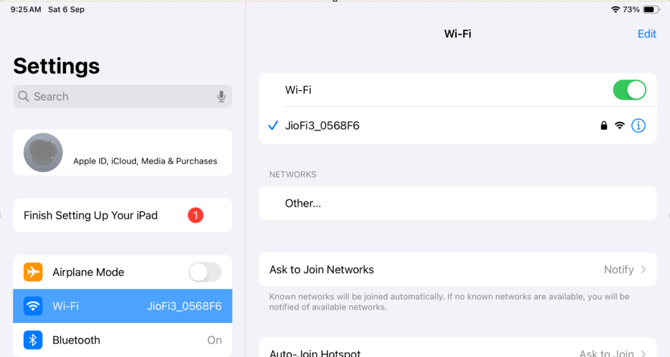
If you don't see the network, check if the internet router is powered on. If the router is off, switch it on.
- If the app fails to load despite a connected Wi-Fi, conduct an internet speed test.
Visit speed.cloudflare.com in any browser, click "start," and observe the results. An optimal speed is 25 Mbps with no packet loss.
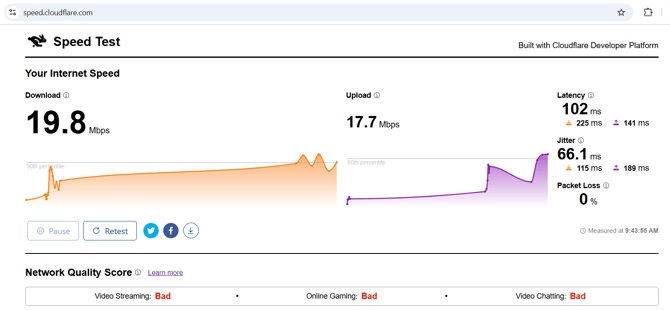
Should you encounter a low internet speed, contact your network provider for assistance.
🔄 2. Force Close and Reopen the App
-
Swipe up from the bottom (or double-press the Home button on older iPads) to open the App Switcher.
-
Find the Display Sweet app and swipe it up to close it.
-
Reopen the app.
🧼 3. Clear Cache and Data (If Applicable)
- If the app offers an option to reset or clear cache in its settings, try using that. Otherwise, deleting and reinstalling the app achieves the same effect.
🔄4. iOS version and App updates
-
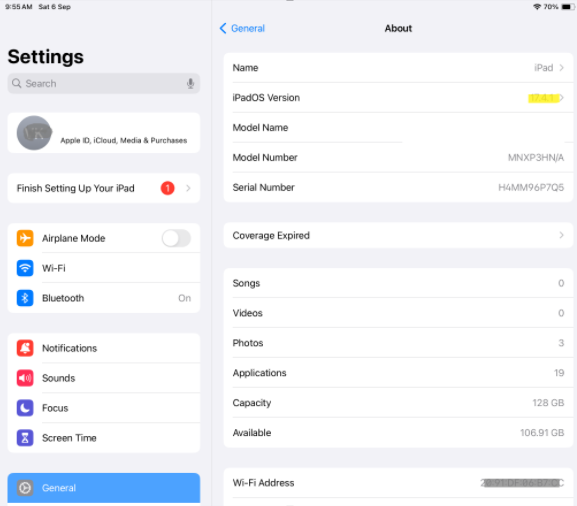
iOS Version: Ensure your iPad is running the latest iOS version supported by Display Sweet.
Go to Settings > General > About
-
App Updates: Go to the App Store and check if there's an update available for the Display Sweet app.
🔁 5. Reinstall the App
-
Delete the app from the iPad: Tap and hold the app icon > “Remove App” > “Delete App”.
-
Reinstall it from the App Store.
-
Log in again with your credentials.
⚙️6. Check Device Settings
-
Permissions: Go to Settings > Display Sweet and ensure permissions (e.g., network access, local files) are enabled.
-
Screen Orientation & Display Mode: Try toggling between landscape and portrait. Some content may only load in one mode.
🛠️ 7. Backend or Server Issues
-
Sometimes, the issue may not be with your iPad but with the server. If other devices are also affected, this could be the case.
-
Check with your team if others are experiencing similar issues.
-
You can also check for internal status alerts or messages from the Display Sweet team.
📞 8. Contact Support
If none of the above steps work:
-
Email: support@displaysweet.com
-
Phone: If you have a Display Sweet support contact