
OVERVIEW
If a user is unable to connect an iPad to an external device in Presenter, the issue is often related to network configuration, incorrect Wi-Fi settings, or mismatched IP addresses. This guide walks you through how to confirm the iPad is connected to the correct network and how to match IP ranges with connected devices in your DisplaySweet CMS.
Verifying and Fixing iPad Connection to External Devices
Follow these steps to resolve iPad connection issues in Presenter by checking network settings and IP address alignment.
Step 1: Check the Wi-Fi Network (SSID) and Internet Access
-
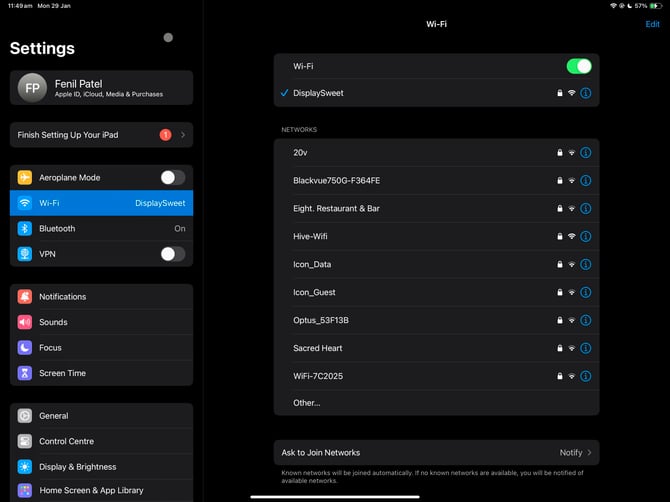
On the iPad, open Settings > Wi-Fi.
-
Check that there is a blue tick next to the correct Wi-Fi network name (SSID). This should appear directly under the Wi-Fi toggle.
-
If the SSID is incorrect:
-
Tap the correct network and reconnect.
-
-
If the SSID is correct:
-
Try restarting the Presenter app and attempt the connection again.
-
- Check internet connectivity and access to DisplaySweet services:
-
-
Open Safari or Chrome on the iPad.
-
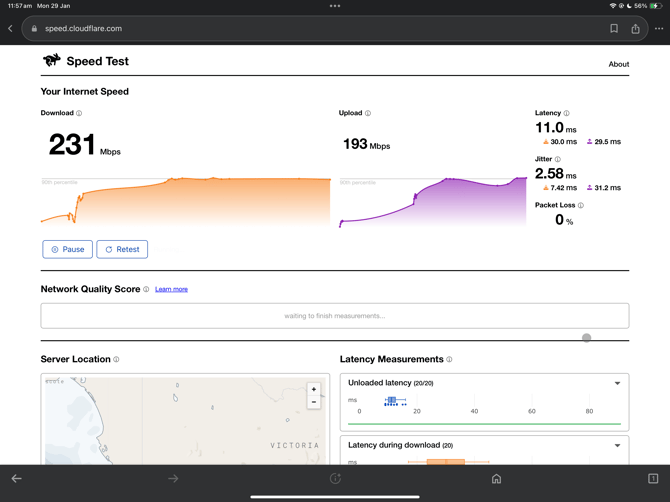
Visit the Cloudflare speed test site: https://speed.cloudflare.com
-
Verify the following recommended results:
-
Download/Upload: At least 25 Mbps
-
Latency: Less than 30ms
-
Jitter: Less than 10ms
-
Packet Loss: 0%
-
-
Note: Depending on the subscription level certain features may not appear. If you'd like to discuss additional features please email support@displaysweet.com or contact your DisplaySweet Account Manager.
Step 2: Match SSID and IP Range with Project Setup
-
On the iPad, go to Settings > Wi-Fi and tap the info icon (ⓘ) next to the connected network.
-
Note the IP address listed.
-
On your computer, open cms.displaysweet.com and:
-
Go to the project
-
Click Settings > Presentation Devices
-
Check the IP addresses listed under your devices (e.g. BlazeDesk, Pixile)
-
-
Make sure the iPad is on the same IP range as the devices listed.
Step 3: Update the iPad’s IP Address
-
If the iPad's IP address does not match the expected range:
-
Tap Configure IP on the Wi-Fi settings page.
-
Choose Manual and enter the correct IP address based on your CMS settings.
-
-
Save and retry connecting with the Presenter app.
Step 4: Escalate to L2 Support
If the iPad still cannot connect after confirming the SSID, IP settings, and internet access:
-
Escalate the issue to Level 2 (L2) support for further investigation.
-
Include the following in your escalation:
-
Project name
-
iPad IP address
-
Expected device IP range
-
Confirmation of Wi-Fi SSID
-
Cloudflare test result screenshot (if available)
-
Steps already taken
-
You can submit a ticket via the DisplaySweet Support Portal or email support@displaysweet.com.