
OVERVIEW
The DisplaySweet Presenter app on the Surface Studio connects to a computer (e.g. DisplaySweet Performance NUC) that drives the Presentation TV content. This article outlines two hardware setup scenarios:
-
When the PC is located remotely in the comms room
-
When the PC is placed directly behind or under the TV
Surface Studio to TV Setup Options
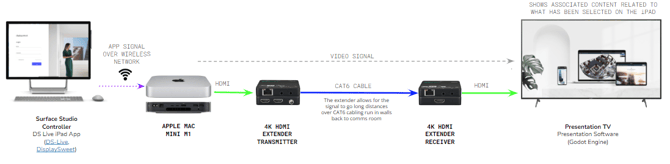
Option 1: Computer Located in the Comms Room
-
The Surface Studio connects wirelessly to the same network as the DisplaySweet Performance NUC.
-
The NUC sends the video signal to the TV via:
-
HDMI output from NUC
-
4K HDMI Extender (Transmitter)
-
CAT6 cabling to TV location
-
4K HDMI Extender (Receiver)
-
HDMI into the TV
-
Option 2: Computer Located Behind or Under the TV
-
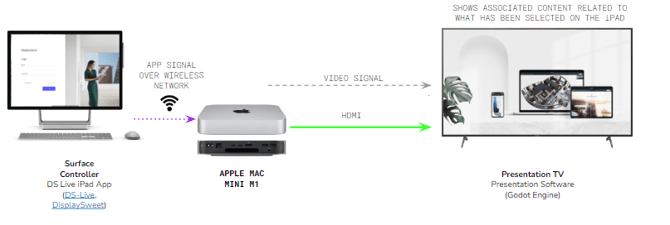
The Performance NUC is placed near the TV.
-
HDMI cable connects the NUC directly to the Presentation TV.
-
Surface Studio connects over the same network (Wi-Fi or Ethernet) to control content remotely.
Surface Studio Requirements
-
Model: Surface Studio 2, 16GB, 1TB
-
OS: Windows 10 or 11 with Presenter installed
-
Network: Must be on the same network as the Presentation Computer (NUC)
TV Hardware Requirements
-
Size: 55" to 98" 4K Commercial-Grade TVs
-
Wall Bracket: Must allow rear access for cabling or front tilt
-
Cabling:
-
HDMI v2.0 or higher
-
CAT6 for HDMI extenders (if used)
-
-
4K HDMI Extender:
-
Required when the PC is installed remotely
-
Must be CAT6-compatible and terminated correctly
-
-
Optional iBoot Timer:
-
Used for auto on/off scheduling
-
Should be configured based on the showroom’s open/close hours
-
Installation Notes
-
PC Setup: Software configured and tested before deployment
-
TV Mounting: Wall installation should allow easy access
-
Scheduling: If required, iBoot or Windows Task Scheduler can be used
-
Remote Support: TeamViewer must be installed for post-install support
DisplaySweet Visual Install Checklist
Supports correct setup of DisplaySweet Presenter using surface studio and DisplaySweet Performance NUC.