
OVERVIEW
Connectivity issues can happen if your device isn’t on the correct network, if the internet speed is too low, or if the DisplaySweet Live app or display hardware isn’t functioning properly. This guide shows you how to check your device, update your app, and troubleshoot your display so you can get connected quickly.
Troubleshooting the Source Device (iPad / Surface Studio / Touchscreen)
Step 1: Check Your Network Connection
-
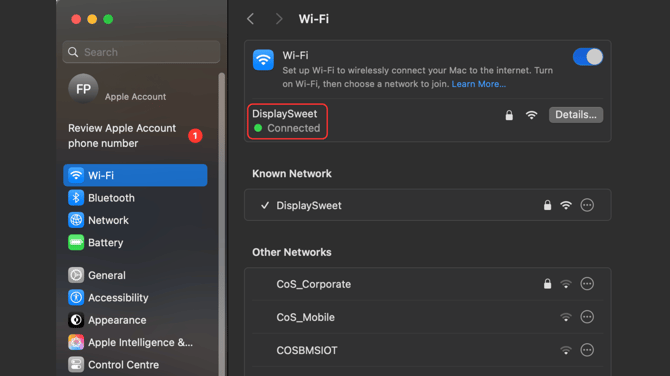
Tap the Wi-Fi symbol on your device.
-
Make sure the network name matches the DisplaySweet recommended network.
Step 2: Run an Internet Speed Test
-
Open the Safari app.
-
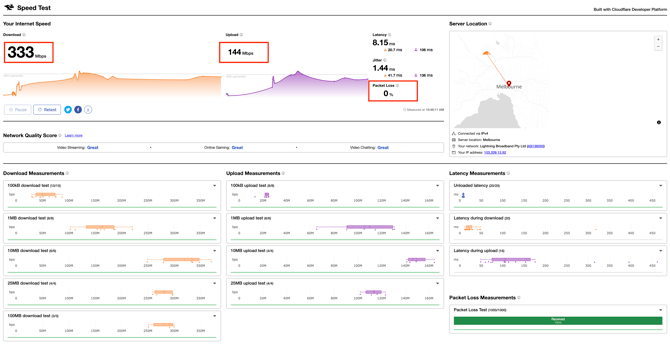
Check your results:
-
Upload speed: greater than 25 Mbps
-
Download speed: greater than 25 Mbps
-
Packet loss: 0%
-
-
If results are below minimum, contact your IT or Network team.
Step 3: Update the DS-Live App
-
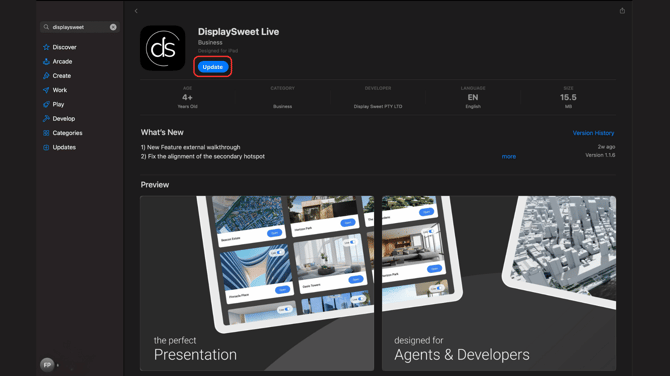
Open the App Store on your device.
-
Search for DS Live app.
-
If updates are available, tap Update.
-
Restart your device after updating.
Note: Depending on your subscription level, certain features may not appear. If you'd like to discuss additional features please email support@displaysweet.com or contact your DisplaySweet Account Manager.
Troubleshooting the Display (TV / LED Wall / Model)
Step 1: Check the Cables
-
Make sure all cables are firmly connected.
-
If loose, unplug and reconnect them.
Step 2: Restart the Display’s Computer
-
Power Button Restart:
-
Press and hold the power button for 5 seconds to switch off.
-
Press it once to switch back on.
-
-
Power Cable Restart:
-
Unplug the power cable from the back of the computer.
-
Wait 5 seconds.
-
Plug it back in and try reconnecting.
-
Common Questions
-
What internet speed do I need?
At least 25 Mbps upload and download with 0% packet loss. -
Do I need to update DS Live regularly?
Yes, keeping the app updated ensures you have the latest features and bug fixes.