
OVERVIEW
If a DisplaySweet device (such as an Immersion PC or Studio server) has been deployed without Windows 11 update restrictions, it may attempt to upgrade automatically, which can cause compatibility issues. This guide outlines how to disable automatic updates via Group Policy to keep the system stable.
Disabling Windows 11 Updates via Group Policy
Follow these steps on any Windows-based DisplaySweet system to prevent automatic updates to Windows 11.
Step 1: Open Group Policy Editor
-
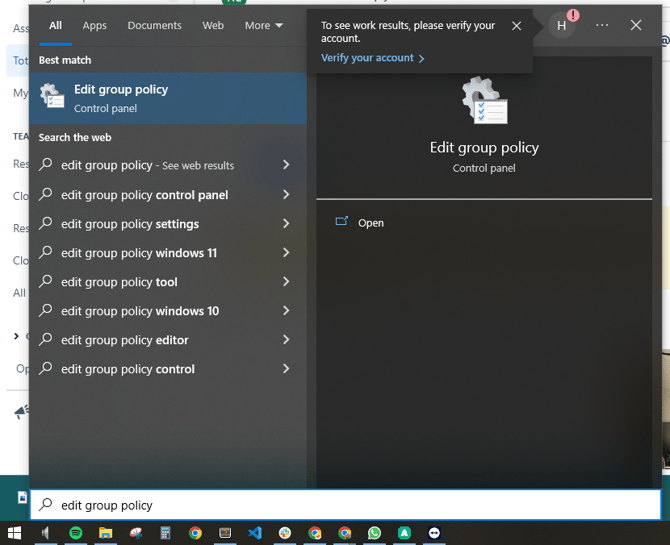
Click the Start menu and type Group Policy in the search bar.
-
Select Edit group policy from the results.
Note: Depending on the subscription level certain features may not appear. If you'd like to discuss additional features please email support@displaysweet.com or contact your DisplaySweet Account Manager.
Step 2: Navigate to Windows Update Settings
-
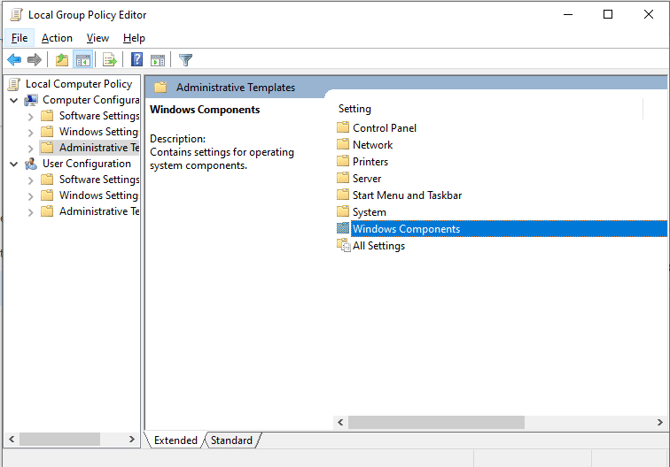
In the left-hand panel, go to:
Administrative Templates > Windows Components -
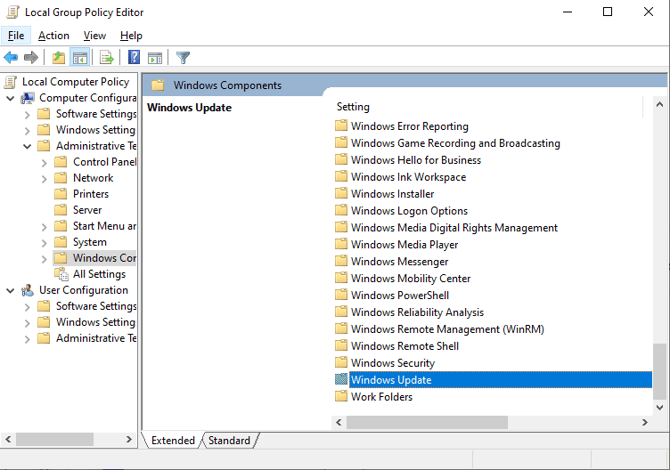
Scroll down and select the Windows Update folder.
Step 3: Configure Automatic Updates
-
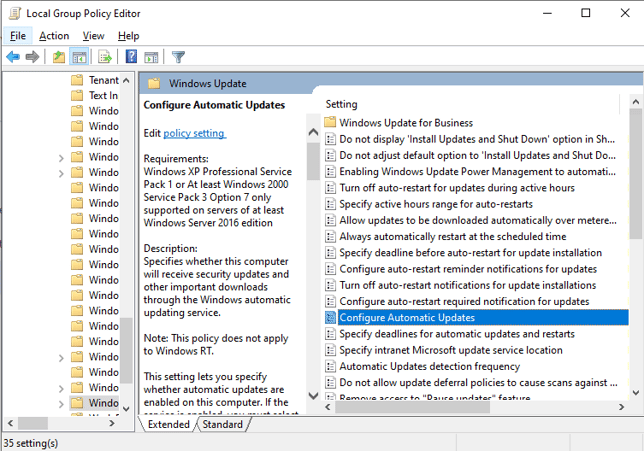
Inside the Windows Update folder, double-click Configure Automatic Updates.
-
In the configuration window, select the option Disabled.
-
Click Apply, then OK to save the setting.
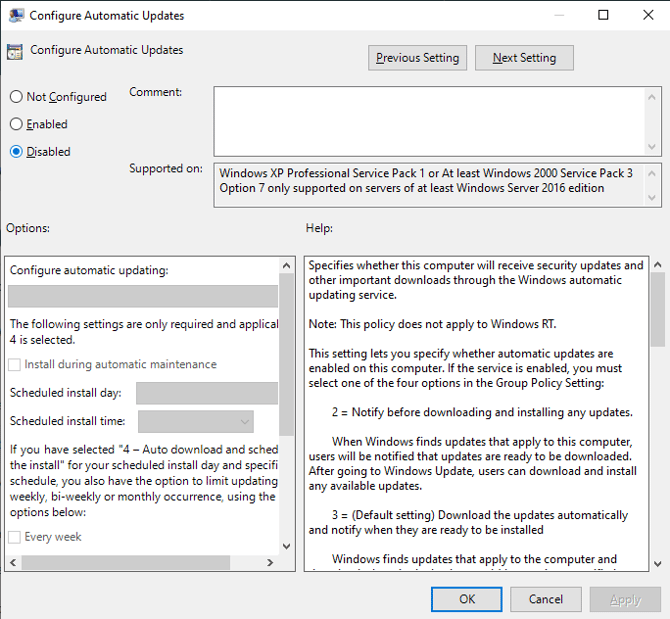
Once disabled, the device will no longer attempt to automatically upgrade to Windows 11. This ensures consistent performance and compatibility across all DisplaySweet experiences.
Setup Checklist ✅
Use this checklist to confirm your Windows 11 update block is applied correctly:
-
Opened Group Policy Editor
-
Navigated to Administrative Templates > Windows Components > Windows Update
-
Opened and set Configure Automatic Updates to Disabled
-
Clicked Apply and OK
-
Restarted the device to ensure settings are applied
Optional:
-
Documented the setup in your deployment log
-
Notified the internal team of update block completion
Tips and Common Questions
-
Always apply this setting before showroom or live environment deployment.
-
Disabling updates this way ensures they do not persist after reboot.
-
Use scripts or deployment tools if rolling this out at scale — contact the Tech team for options.
Need Help?
For any issues related to Windows deployments or update configuration, contact:
Or email support@displaysweet.com for assistance.